
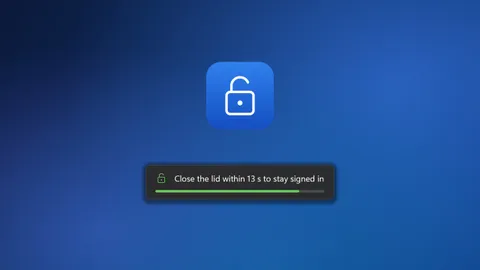
When your laptop is connected to an external monitor, closing the lid usually puts it to sleep, and you have to sign in again. Sometimes that's what you want, and sometimes you just want the laptop out of the way. SkipLock lets you choose each time.
How It Works
1. Press Ctrl+Alt+A
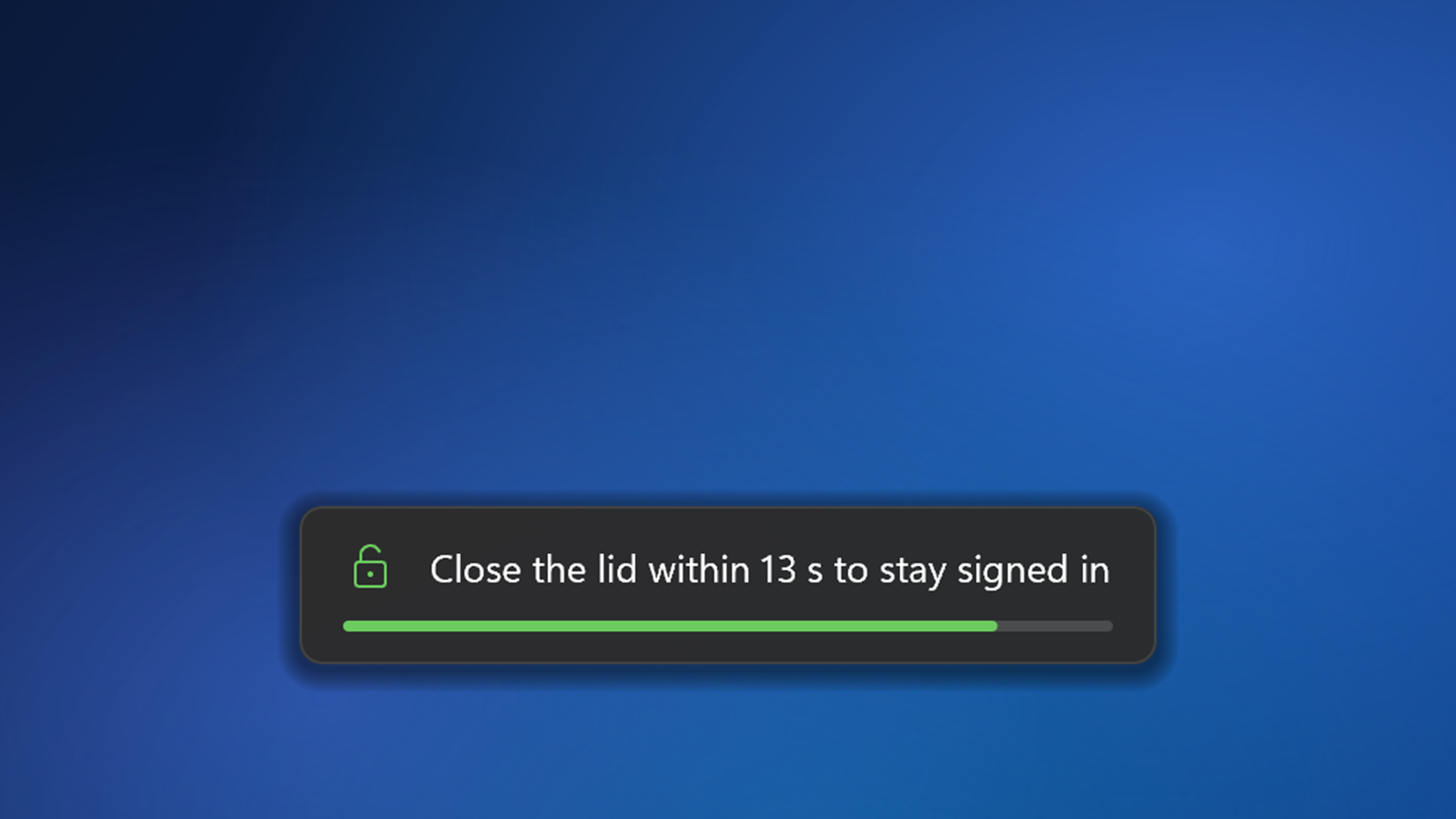
You can press it with your left hand alone. A message near the bottom of the screen counts down 15 seconds.
2. Close the lid
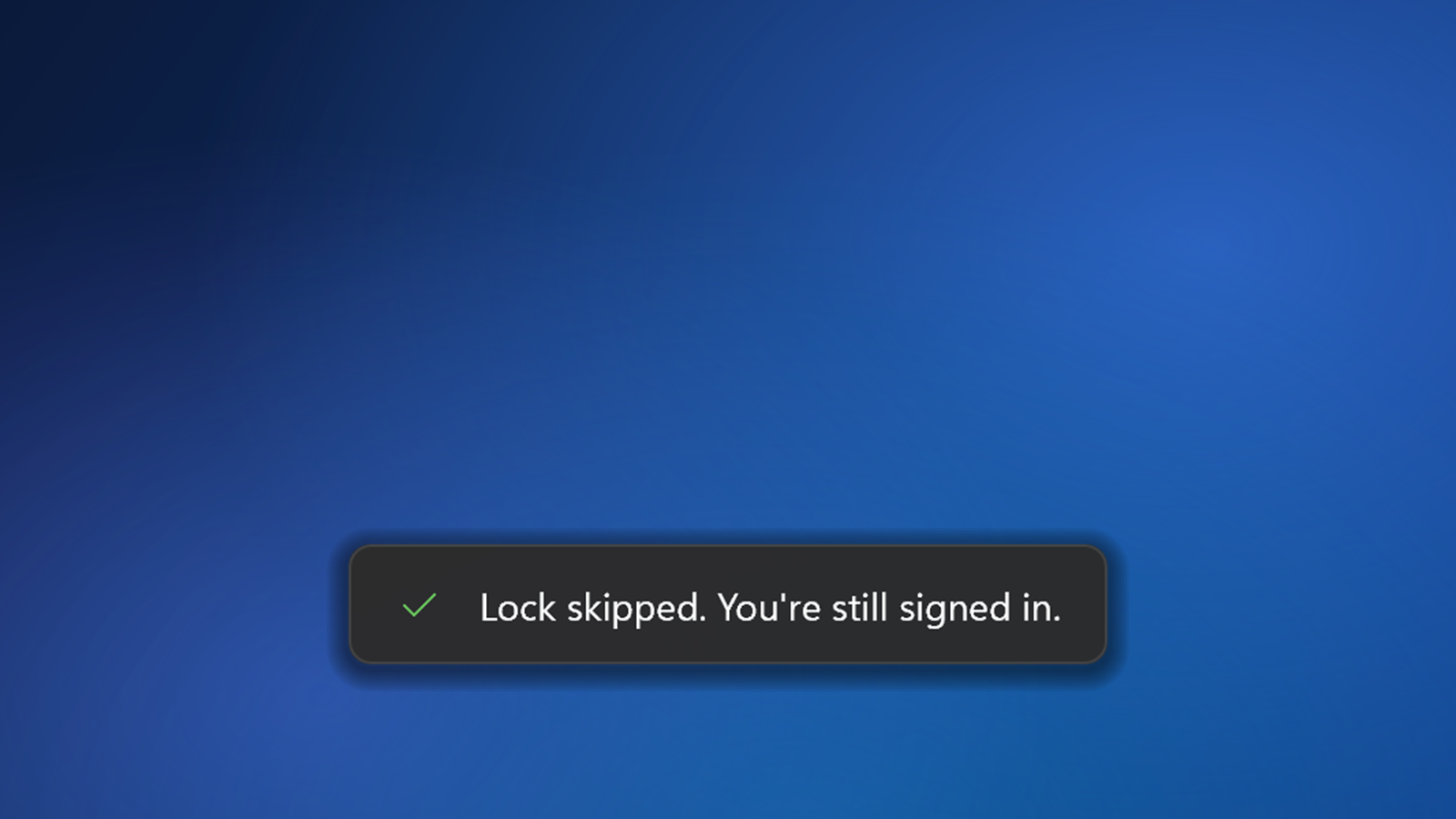
Windows leaves the laptop awake, and you stay signed in on your external monitor.
3. Back to normal
When you open the lid again, closing it puts the laptop to sleep as usual. Without the shortcut, nothing changes.
Features
Only When You're Docked
The shortcut works only while an external monitor is in use. Away from your desk, closing the lid puts the laptop to sleep as always.
A Gentle On-Screen Message
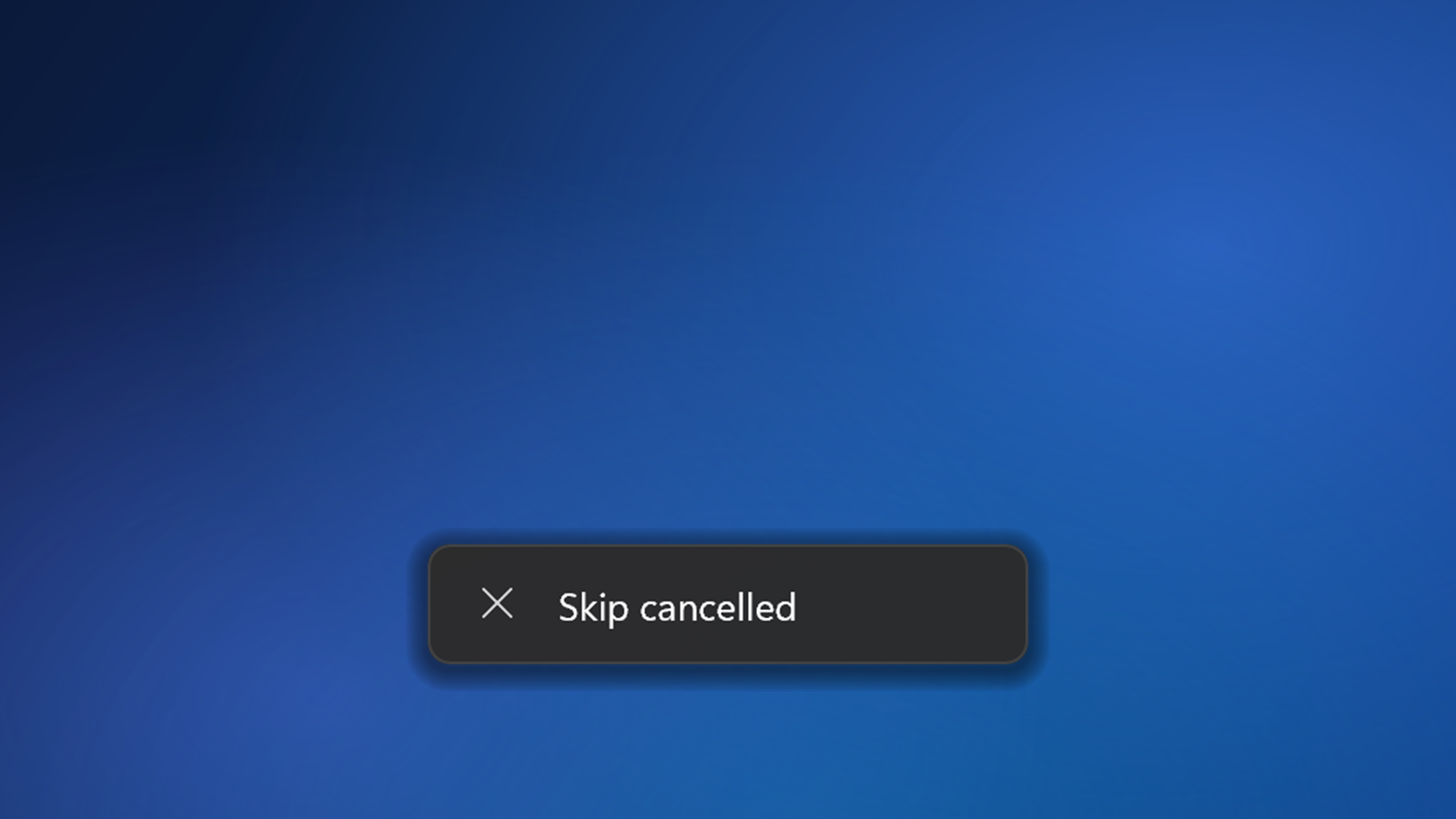
A small message with a countdown confirms the shortcut, then tells you the lock was skipped. It fades away on its own and never takes focus.
Your Settings Always Come Back
Your own lid setting is restored when you open the lid, when time runs out, or if the app or your PC stops unexpectedly.
Safe to Unplug
Unplug the monitor with the lid closed, and SkipLock locks the laptop and puts it to sleep, so it doesn't stay awake in your bag.
Your Shortcut, Your Timing
Choose a different shortcut and how many seconds you have to close the lid. Start it with Windows if you like.
Tiny and Private
A single small app that sits in the system tray and uses only a few MB of memory. It never connects to the internet.
Gallery
Good to Know
SkipLock works by changing what Windows does when you close the lid, the same setting you'll find under Power Options in Control Panel, for a few seconds only. Your own setting always comes back, even if the app or your PC stops unexpectedly.
SkipLock is in beta. It's new and has been tested on only a few laptops. If it doesn't work the way it should on yours, please email skiplock@sfiles.app or choose Send feedback in its tray menu, so it can be fixed.
Please note: SkipLock can't stop a lock that comes from somewhere else, such as Dynamic Lock, a screen saver or a policy set by your organization. On some work PCs, power settings can't be changed at all.