
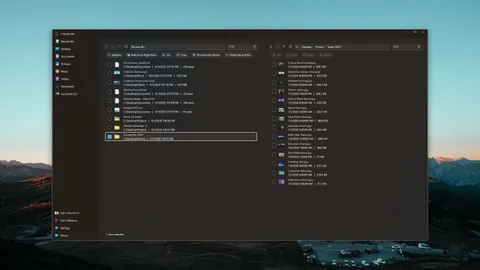
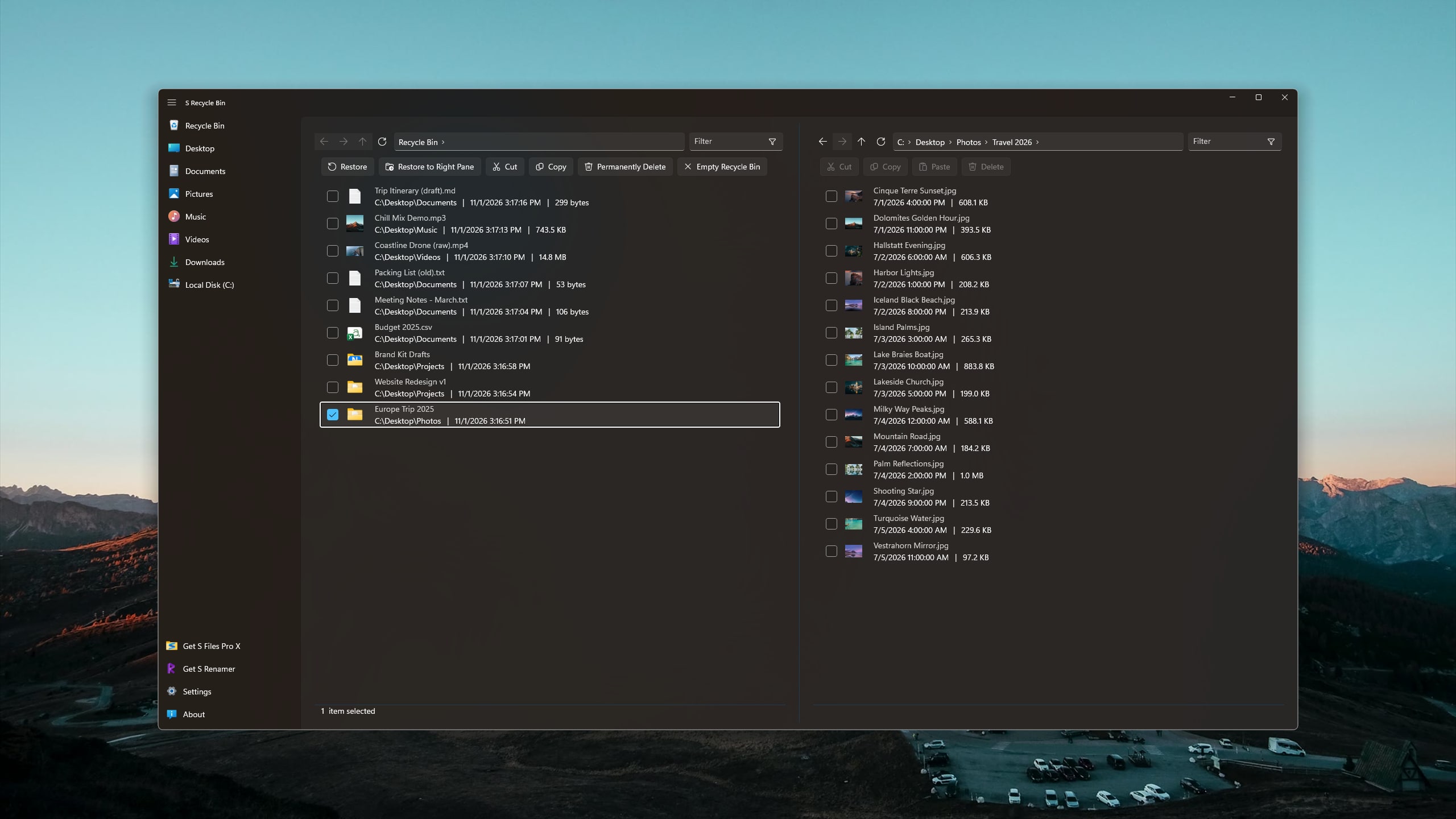
Windows only lets you restore a deleted folder as a whole, and only then can you see what was inside it. S Recycle Bin lets you open deleted folders right where they are, browse through their subfolders, and take out just the files you need. Nothing has to be restored first.
Features
Browse Without Restoring
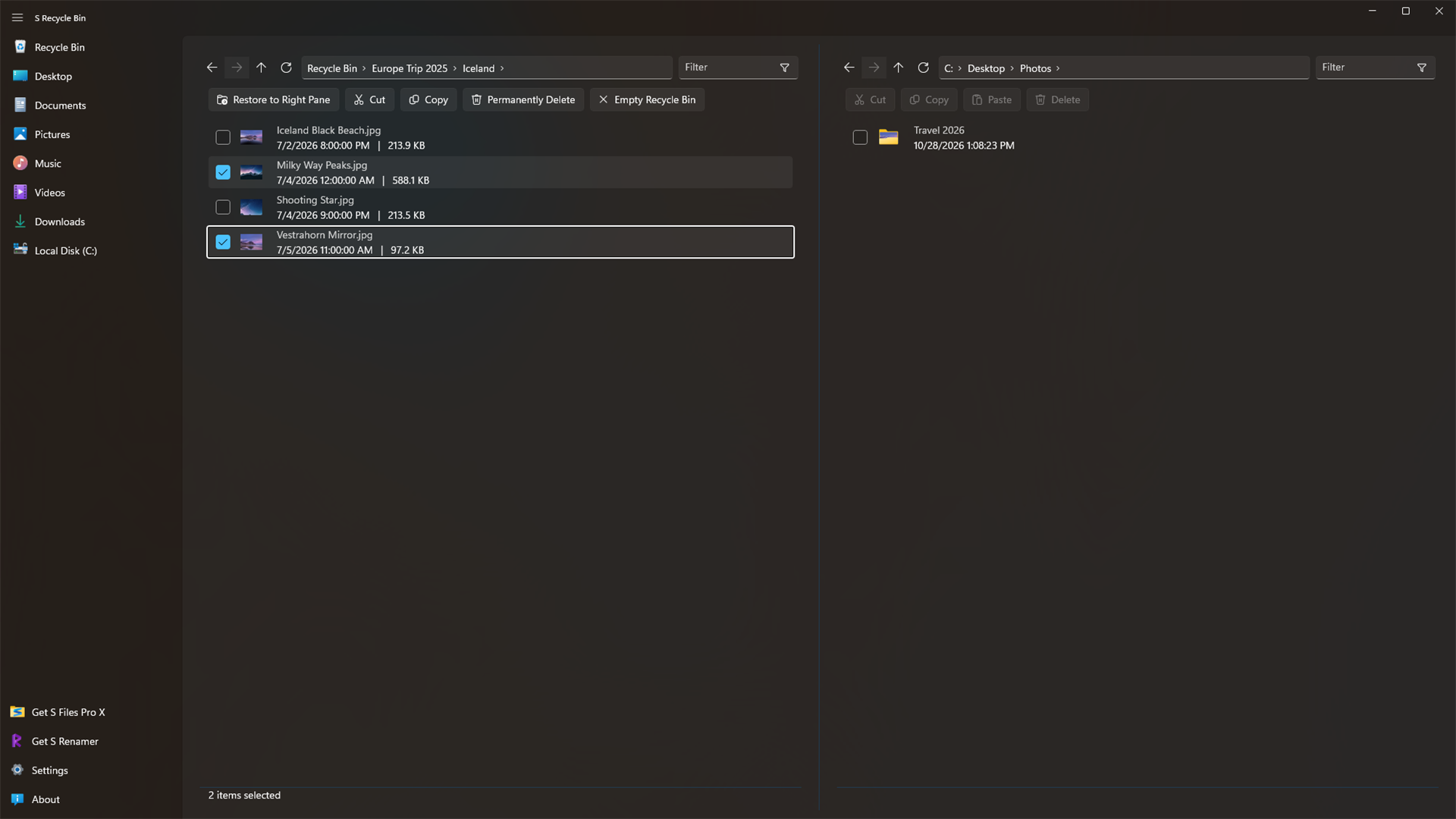
Open deleted folders right in the Recycle Bin and move through their subfolders, just like a normal folder.
Take Out Only What You Need
Copy or cut selected files from inside a deleted folder and paste them anywhere. The rest stays in the Recycle Bin.
Two Panes, Side by Side
The Recycle Bin on one side and any folder on your PC on the other. Drag items across to restore them right there.
See Where Items Came From
Every item shows its name, original location, date deleted, size and type. Filter the current folder to find a file quickly.
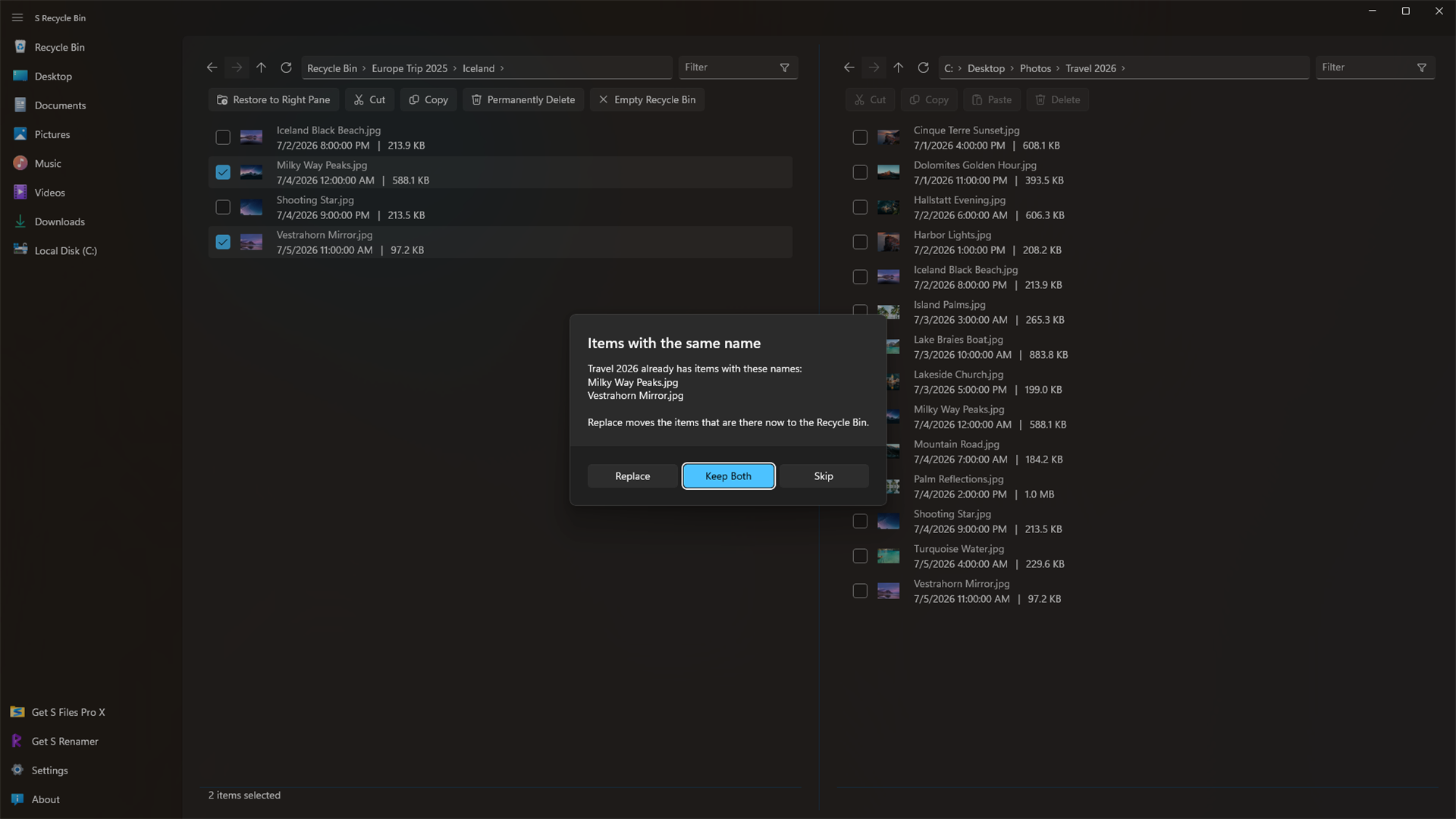
Replace, Skip or Keep Both
When a file with the same name is already there, choose what happens instead of getting a copy with " (2)" added.
Everything Else You Expect
Restore items to where they were deleted from, delete them permanently, or empty the Recycle Bin, with a right-click menu and keyboard shortcuts.
Gallery
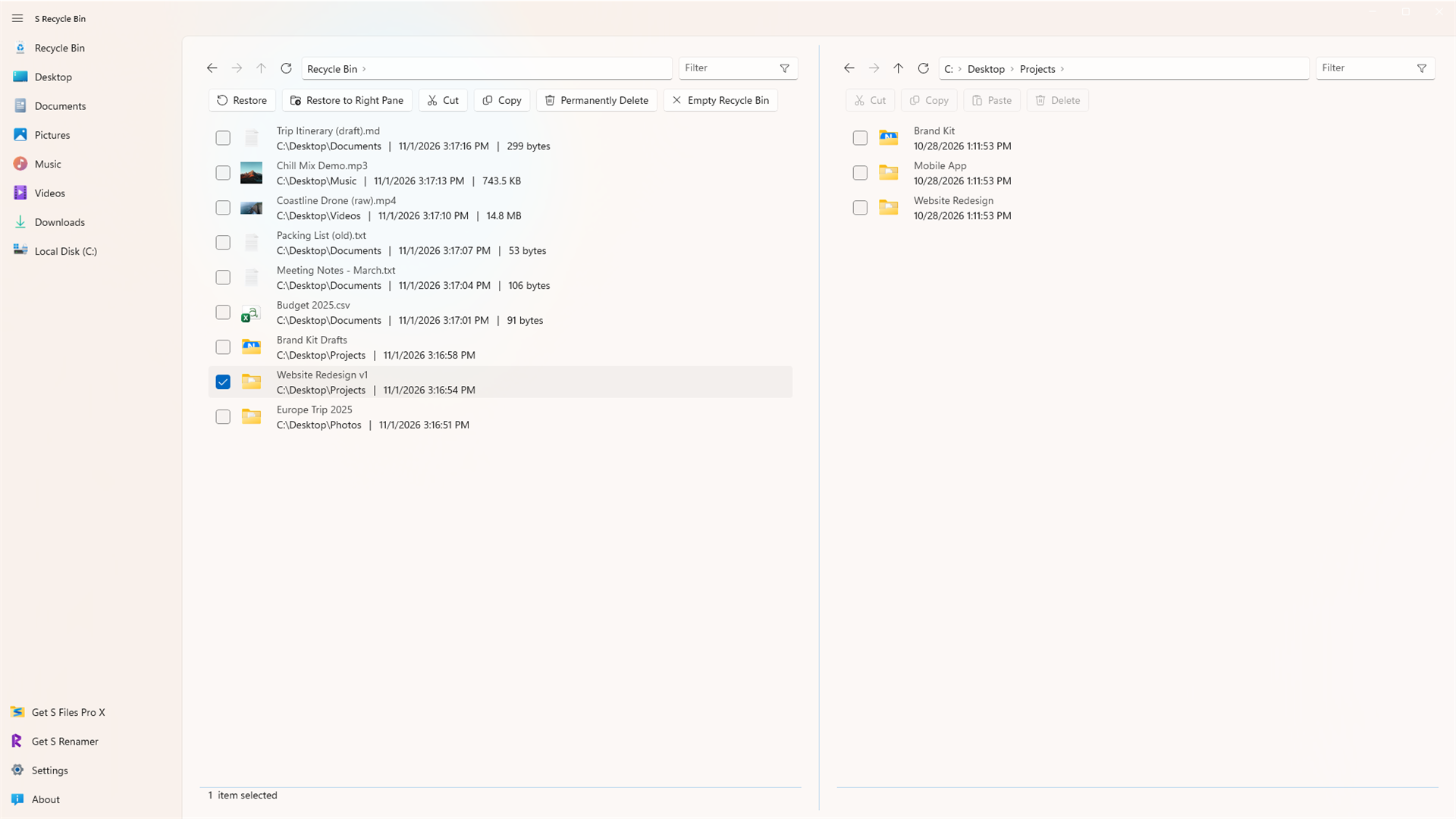
Get Back One File, Not the Whole Folder
Deleted a project folder but only need one document back? Emptied a folder of photos but want just a few of them? Open the deleted folder in S Recycle Bin, find the files, and copy them out or drag them to where they belong. The rest stays in the Recycle Bin, untouched.
Please note: S Recycle Bin works with items that are still in the Recycle Bin. It is not a data recovery tool and cannot bring back files that were permanently deleted or removed when the Recycle Bin was emptied.