
Renaming a hundred holiday photos, a season of TV episodes or a folder of scanned documents one by one takes forever. This guide shows the quick built-in way in Windows, and then how to get full control with S Renamer.
The quick way: File Explorer
Windows can give a group of files the same base name:
- Select the files in File Explorer.
- Press F2, type a name, for example
Beach, and press Enter.
Windows names them Beach (1), Beach (2) and so on. That is handy, but it replaces the whole name. To keep the existing names and change only part of them, you need rules.
The flexible way: S Renamer
S Renamer renames files and folders with rules that you stack on top of each other, and shows every new name before anything changes.
1. Open the folder
Pick a drive or library in the sidebar, or type a path in the Path box and click the arrow button next to it. Double-click a folder to open it. To go up a level, click the up arrow or double-click an empty area of the list.
2. Add a rule
Choose a rule from the drop-down list and click Add Renaming Rule.
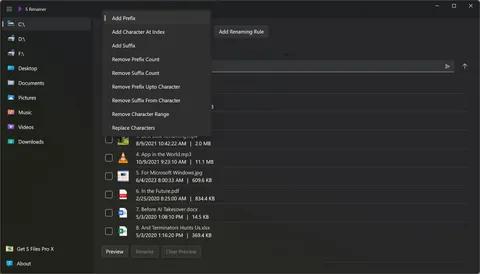
3. Fill in the rule
Each rule has its own row. Choose whether it changes the Name or the Extension, then type its values. Add as many rules as you need.
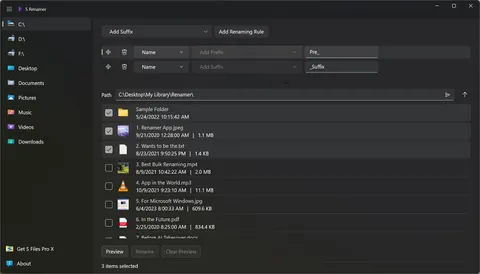
Pre_ at the start and _Suffix at the end.4. Tick the items to rename
Tick the checkbox next to each file and folder you want to rename. To rename everything in the folder, click in the list and press Ctrl+A to select all items at once. Anything you don’t tick stays untouched.
5. Preview, then rename
Click Preview. Each ticked item shows its new name right below its current name. With the old and new names one above the other, it is easy to see exactly what will change and check that it is what you wanted before anything is renamed. If something looks wrong, change the rules and preview again, or click Clear Preview. When you are happy, click Rename.
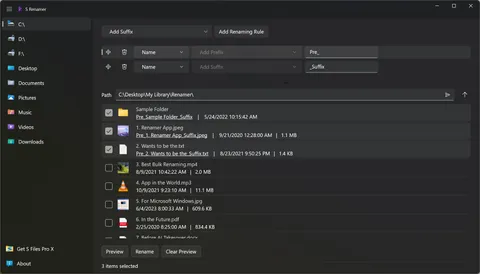
Rules run from top to bottom
S Renamer applies the rules in order, each one to the result of the one above it. Drag a rule by the handle on its left to change the order, or click the bin icon to remove it.
For example, these three rules turn the folder Project into This Project is Awesome:
- Add Prefix
This(with a space at the end) givesThis Project. - Add Suffix
Awesome(with a space at the start) givesThis Project Awesome. - Replace Characters
Awesomewithis AwesomegivesThis Project is Awesome.
The nine rules, with examples
The examples rename a photo called IMG_0042_beach.jpg, with each rule set to change the Name. Positions (indexes) are counted from 0, so the first character is at index 0.
| Rule | What it does | Example values | New name |
|---|---|---|---|
| Add Prefix | Adds text at the start | 2024 |
2024 IMG_0042_beach.jpg |
| Add Suffix | Adds text at the end of the name, before the extension | _edited |
IMG_0042_beach_edited.jpg |
| Add Character At Index | Inserts text at a position | index 3, text - |
IMG-_0042_beach.jpg |
| Remove Prefix Count | Removes a number of characters from the start | 4 |
0042_beach.jpg |
| Remove Suffix Count | Removes a number of characters from the end | 6 |
IMG_0042.jpg |
| Remove Prefix Upto Character | Removes everything up to and including the first match of the text | _ |
0042_beach.jpg |
| Remove Suffix From Character | Removes everything from the last match of the text to the end | _ |
IMG_0042.jpg |
| Remove Character Range | Removes the characters from the start index to the end index, both included | start 0, end 3 |
0042_beach.jpg |
| Replace Characters | Replaces every match of the text (case-sensitive) | _ with a space |
IMG 0042 beach.jpg |
A few more ideas:
- Delete text everywhere: use Replace Characters and leave the replacement empty. Replacing
_with nothing givesIMG0042beach.jpg. - Fix extensions: set Replace Characters to Extension and replace
jpegwithjpg. - Turn dates into readable dates: for a file named
20240105.jpg, add two Add Character At Index rules:-at index 4 gives2024-0105, then-at index 7 gives2024-01-05.
Tips
- Always check the preview before clicking Rename.
- Rules apply to folders too. Folders have no extension, so only the Name rules change them.
- Drag the divider between the rules and the file list to give either area more room.