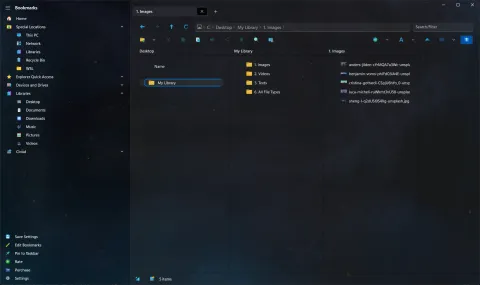
You take a screenshot, and now you want it as a file in a particular folder. Usually that means opening Paint or another app, pasting, and saving. Since version 2.16, S Files Pro X does it in one step.
Save a screenshot as a file
- Take a screenshot. For example, press Win+Shift+S and select an area; the Snipping Tool copies it to the clipboard.
- In S Files Pro X, open the folder where you want the image.
- Press Ctrl+V (or use Paste).
The image is saved as a PNG file named ClipboardImage_ followed by the date and time, for example ClipboardImage_2022-11-11-14-30-05.png. Rename it with F2 if you like.
Save text as a file
The same works for text. Copy some text from anywhere, open a folder in S Files Pro X, and paste: the text is saved as a .txt file named ClipboardText_ followed by the date and time, for example ClipboardText_2022-11-11-14-30-05.txt.
Handy for
- keeping screenshots for bug reports or documentation in the right project folder,
- saving an image copied from a web page or a document,
- jotting down a snippet of text, a link or a command without opening an editor.
See the changelog for version 2.16.