Some features start as experiments, so they can be tried and polished before everyone gets them. On the last day of 2023, version 3.21 turned several of them into regular settings.
Column view
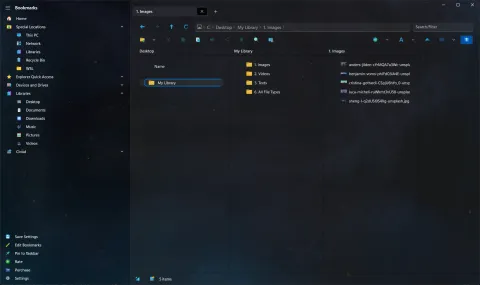
Column view shows folders as Miller columns, like the column view in the Mac Finder: each folder you open appears in a new column to the right, so the path stays on screen.
- July 2023, version 3.10: column mode arrived as an experimental setting.
- August 2023, version 3.12: a setting to change the column width followed.
- December 2023, version 3.21: it became a regular option. Turn it on in Settings > General > Enable Column Mode, and adjust Column Width for Column Mode.
More on the column view page.
Command palette
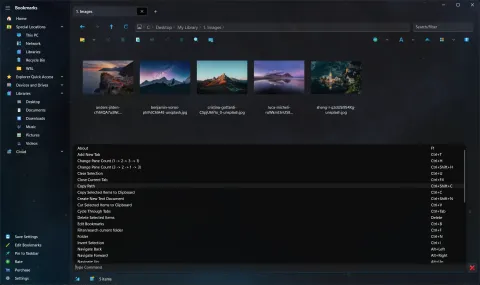
Press Ctrl+Shift+K, type what you want to do, such as Create New Text Document, and run it.
- July 2023, version 3.11: the command palette arrived as an experiment.
- August 2023, version 3.14: browsing the commands with the keyboard no longer re-filters the list.
- December 2023, version 3.21: it is visible by default, has an X button to close it, and can be turned off in Settings > General > Show Command Palette.
More on the command palette page.
Also on by default in 3.21
- Phones and cameras (MTP devices) show up on the Home page. You can turn this off in Settings > Home Page.
- Drives and devices update automatically when you connect or disconnect them.
And a few more settings graduated from Experimental:
- Settings > Miscellaneous > AutoStart with Windows starts S Files Pro X when you sign in.
- Settings > File Operations > Make Clipboard Data Available Even After the App is Closed keeps copied files on the clipboard after you close the app. Copying many files takes longer with this on.
Other things from the second half of 2023
- Click a folder with the mouse wheel to open it in a new tab (3.11).
- Tabs with search results, and their filters, are restored when you restart (3.11).
- You can choose which file extensions open in each built-in viewer, in the settings file (3.11).
See the changelog for version 3.21.