
Code editors made the command palette popular: instead of hunting through menus, you type a few letters of what you want and press Enter. S Files Pro X brings the same idea to file management.
Run a command
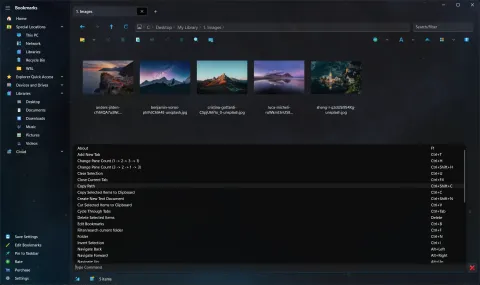
- Click into the command palette box below the file panes. (If it is hidden, press Ctrl+Shift+K to show it.)
- Start typing what you want to do, for example text to find Create New Text Document.
- Pick a command from the suggestions, with the mouse or the arrow keys and Enter, to run it.
Commands include copying, pasting, deleting, creating new files and folders, and many more. Each command shows its keyboard shortcut next to it, so the palette is also a handy way to learn the shortcuts. While you browse the list with the arrow keys, it stays as it is instead of filtering again, so it is easy to scan.
Show or hide it
The command palette is shown by default. To hide it:
- press Ctrl+Shift+K again,
- click its X button, or
- turn off Settings > General > Show Command Palette.
How it came about
The command palette arrived as an experiment in version 3.11 (July 2023) and became a standard, visible-by-default feature in version 3.21. Combine it with the keyboard shortcuts and you rarely need the mouse.