
Not everything lives in a regular folder on a local drive. Since version 3.0, S Files Pro X can open the other places Windows keeps files too.
Recycle Bin
First turn on Settings > Experimental > Add Shell Locations to the Bookmarks During App Startup and restart the app. The Recycle Bin then appears in your bookmarks, where you can:
- see the files and folders you have deleted, and
- delete items permanently.
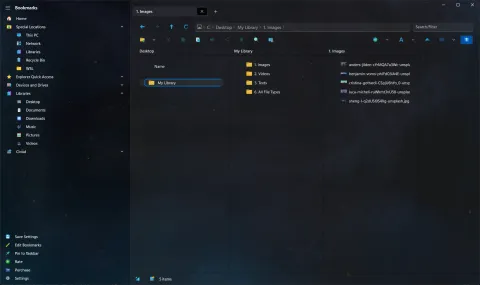
Linux files (WSL)
If Windows Subsystem for Linux is installed, you can browse your Linux distributions’ files and bookmark them like any other folder.
Network locations
Type a network path such as \\server\share in the address bar and press Enter, then bookmark it with Ctrl+D. Drives you map in Windows also show up in the list of drives.
Phones and cameras
Phones, tablets and cameras connected over USB (MTP devices) show up on the Home page, and the list updates as you plug devices in and out. You can browse them, copy files to and from them, and create folders on them.
Zip files as folders
Open a zip file to browse it like a folder. Compressing files to a new zip and extracting a zip are built in too.
BitLocker drives
An experimental setting lets you unlock a BitLocker-locked drive: double-click the drive and enter the password in the command prompt that opens.
Good to know
These locations do not all support every feature of regular folders. For example, when version 3.0 shipped, you could browse inside a zip file but not copy, rename or delete items inside it. The version 3.0 changelog lists what worked in each type of location at the time.