
If you have used a Mac, you may know the Finder’s column view: every folder you open appears as a new column to the right of the one before, so the whole path stays on screen. This layout is called Miller columns, and Windows’ File Explorer does not have it. S Files Pro X does.
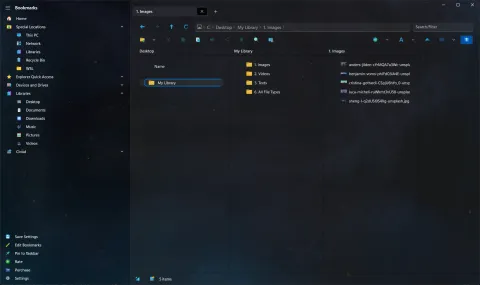
Why use column view
- Deep folder trees stay readable. You can see the parent folders next to the current one instead of only a path in the address bar.
- Switching branches is quick. Double-click any folder in an earlier column to open it there.
If you prefer opening folders with one click, turn on Settings > General > Single Click Mode. It applies everywhere in the app, not only in column view.
Turn on column view
- Open Settings (Ctrl+P).
- Go to General and turn on Enable Column Mode.
- Use the Column Width for Column Mode slider to make the columns as wide as you like.
How it came about
Column mode started as an experimental setting in version 3.10 (July 2023). A column width setting followed in 3.12, and in version 3.21 (December 2023) column mode became a regular option in the General settings.