
Tabs let you keep several folders open without a pile of windows. S Files Pro X has had browser-style tabs since its early versions, and with dual and triple panes each pane has its own set.
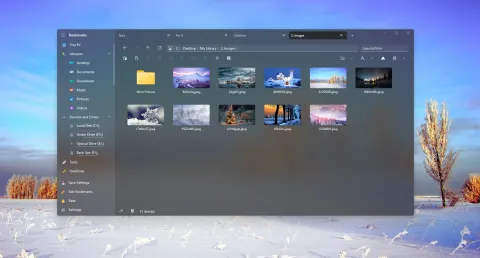
Windows 11’s File Explorer has tabs too. What S Files adds is tabs combined with multiple panes, per-tab view settings, and a few shortcuts borrowed from web browsers.
Tab shortcuts
| Shortcut | Action |
|---|---|
| Ctrl+T | Open a new tab |
| Ctrl+W or Ctrl+F4 | Close the current tab |
| Ctrl+Shift+T | Reopen the last closed tab (press again for the one before) |
| Ctrl+Tab | Go to the next tab |
| Ctrl+F3 | Open the selected folder in a new tab |
| Mouse wheel click on a folder | Open the folder in a new tab |
See all shortcuts on the keyboard shortcuts page.
Every tab remembers its view
Each tab keeps its own view type (simple list, detailed list, tiles, or small, medium or large grid), so a photo folder can stay in large grid while a documents folder stays in a detailed list. Bookmarks can remember a view type too, and a tab opened from a bookmark can use it.
Search results open in a tab as well, and those tabs are restored with their search filters.
Drag and drop onto tabs
Drag files onto a tab’s header to switch to that tab, then drop them there to move them, or hold Ctrl to copy. You can also drop items inside the tab’s folder or onto a folder listed in it.
Picks up where you left off
When you close S Files Pro X and open it again, your tabs, their view types and the pane layout come back. If a tab’s folder no longer exists, its header shows (!) before the name, so you can spot it and close it.