
Different folders call for different views. A folder of photos is easiest to browse as big thumbnails, while a folder of documents is easier to scan as a list with dates and sizes. S Files Pro X has six view types, and each tab keeps its own.
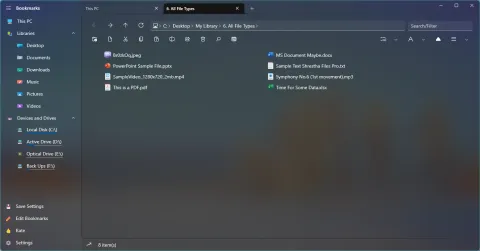
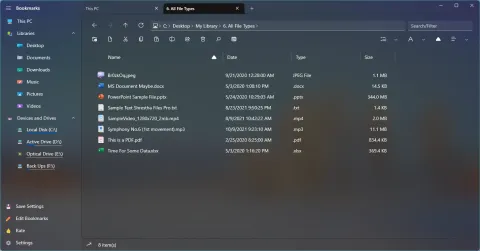
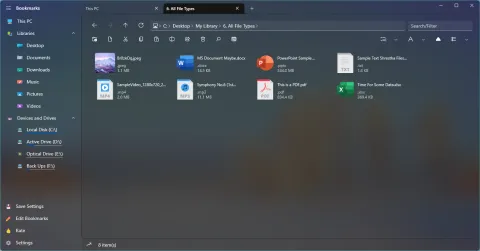
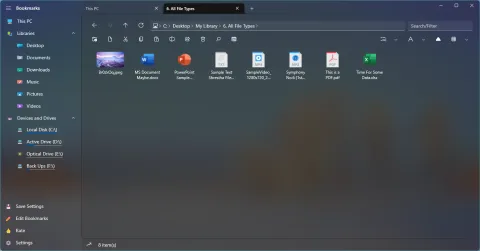
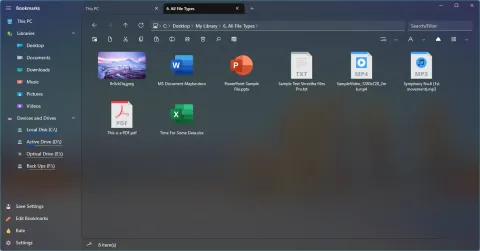
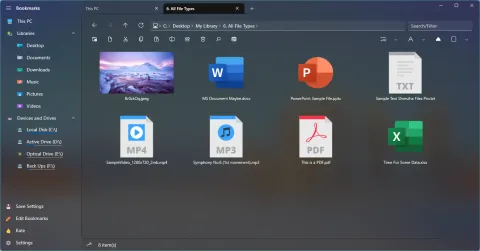
The same folder in each view type. Screenshots from 2022.
The six views
- Simple list: names with small icons, in columns. Fits the most files on screen.
- Detailed list: one row per item with name, date, type and size. Click a column header to sort by it.
- Tiles: an icon with the name, type and size next to it.
- Small, medium and large grid: icons or thumbnails in a grid, from compact to big enough to recognize photos at a glance.
Switch views
- Use the view button in the toolbar, or the view options in the right-click menu.
- Or hold Ctrl and turn the mouse wheel to step through the views.
Every tab keeps its own view
Each tab remembers its view type, so a photo folder can stay in a large grid while a documents folder stays in a detailed list, and your views come back when you restart the app. A bookmark can remember a view type too, so a folder always opens the way you like it.
Make the views your own
In Settings > Item Templates, you can change the thumbnail size for each view type and the length of items in the simple list and tiles views. Choose what the icons look like, from simple icons to real thumbnails, in themes and icons.