
Most file managers give you light or dark. S Files Pro X goes further, with colorful themes, see-through backdrops, background images and whole icon packs you can switch between.
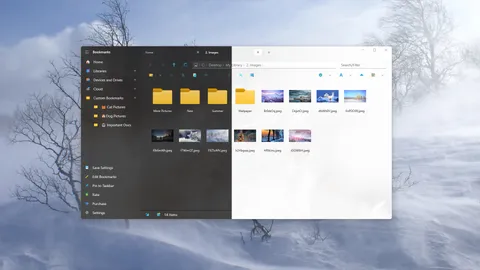
Color themes
Besides light, dark and following the Windows setting, there are colorful app themes: red, green and many more, plus “hero” themes loosely based on superhero colors, such as Super (man) and Wonder (woman). The colors are adjusted so text stays readable.
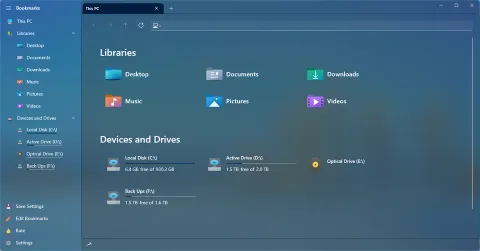
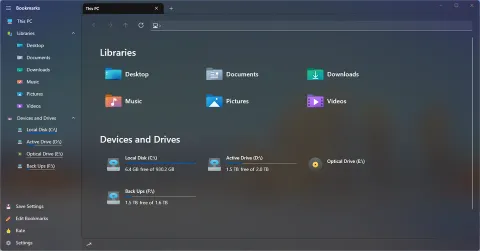
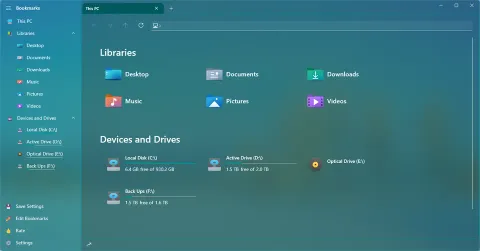
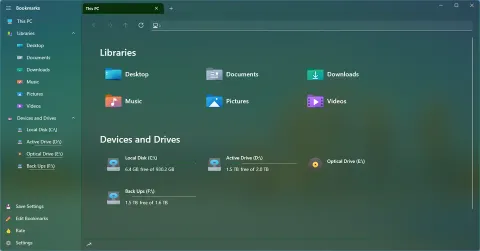
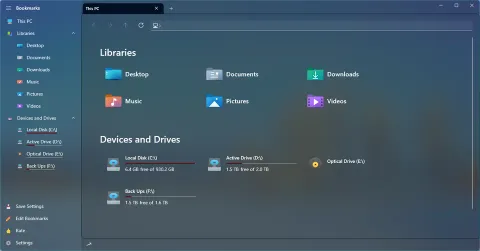
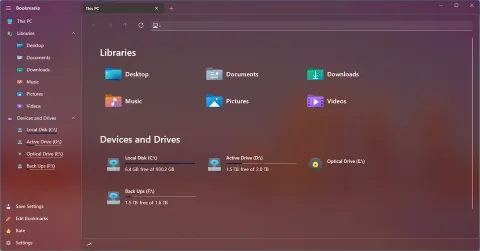
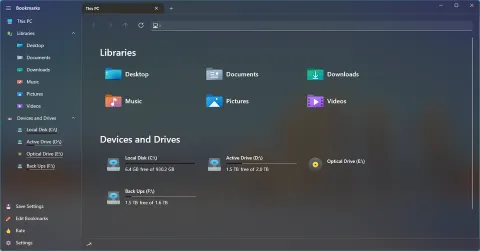
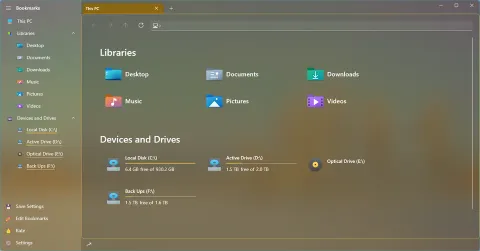
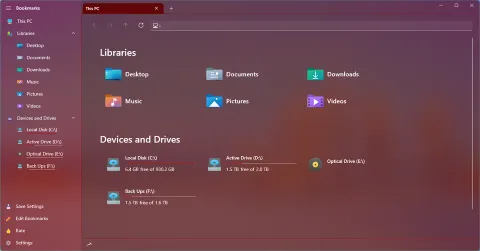
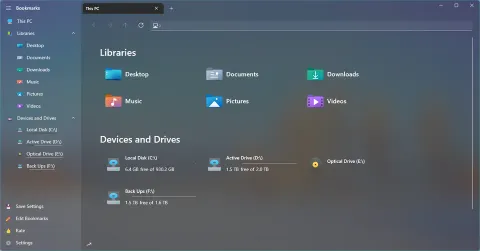
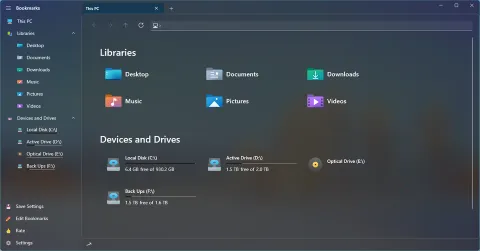
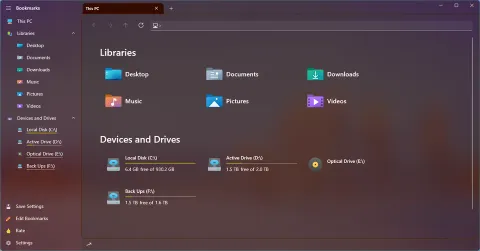
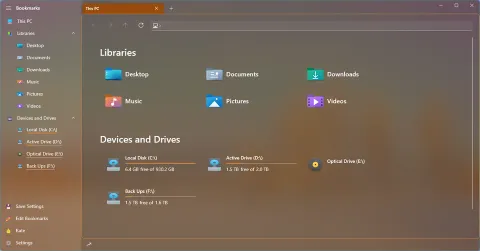
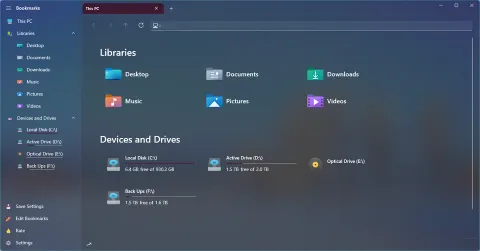
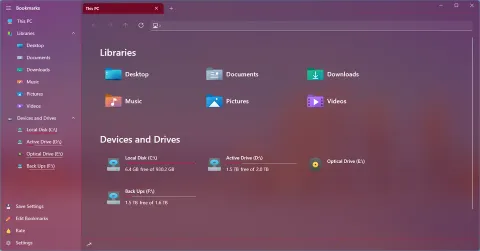
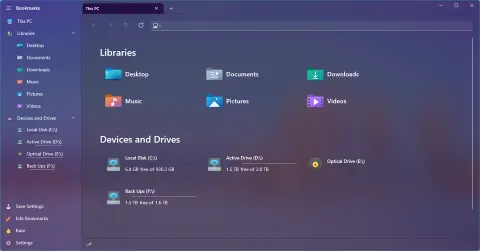
Sixteen of the color themes, on the Home page. Screenshots from 2022.
Mica, Acrylic and background images
- Backdrops: choose Mica or Mica Alt (Windows 11) or Acrylic (Windows 10 and 11), and change them without restarting the app. Context menus use the Acrylic effect too.
- Background images: use your own picture or one of 14 built-in backgrounds, such as Ocean, Sunset, Waterfall, Dark Forest, Snow Ski and White Feathers, plus one in the style of Windows XP. If a background does not show, lower the overall opacity settings so it can show through.
- Opacity: separate sliders for the overall window, the content area, and the active and inactive panes.
Icon packs
Pick how files, folders, drives, libraries, bookmarks and toolbar buttons look:
- colorful icon themes, including an Office-style theme with icons by Icons8,
- a Windows XP icon pack for nostalgia,
- simple outline (glyph) icons for a clean look,
- or real thumbnails, either for everything or only for chosen file types such as photos.
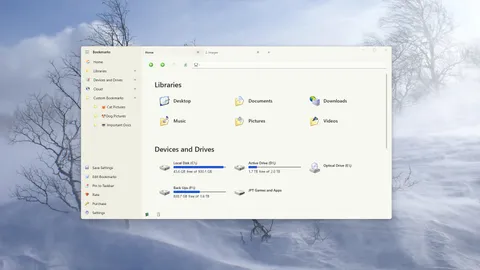
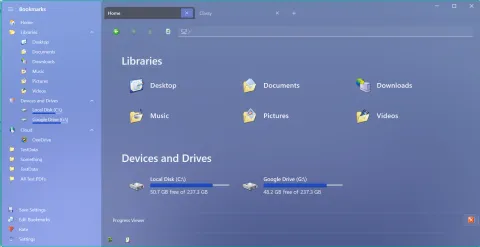
The Windows XP icon pack, in a light theme and a purple theme.
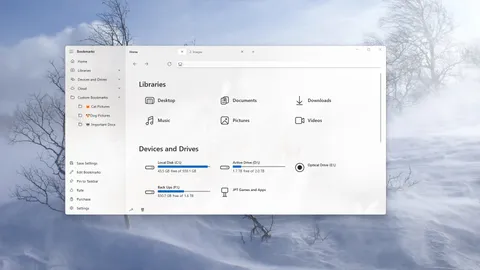
Font icons (simple or colorful) load fastest, which helps in folders with thousands of files. You can even make your own icon theme from SVG files.
Density and views
App density comes in four levels: Relaxed, Normal, Compact and Extra Compact. Each of the six view types (simple list, detailed list, tiles, and small, medium and large grid) has its own thumbnail size setting, and simple list and tiles have an adjustable item length.