
S Files Pro X gives you two ways to find things: a quick filter for the folder in front of you, and a search that digs through subfolders.
Quick filter
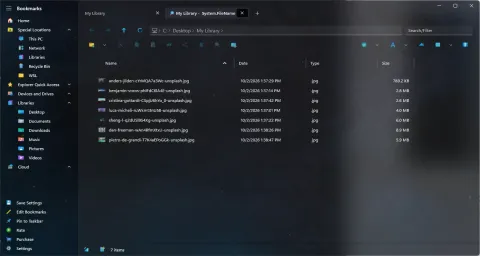
Press Ctrl+E (or click the Search/Filter box) and start typing. The current folder narrows down to matching files and folders as you type. It is the fastest way to find one file in a long list.
To jump without filtering, just type the first letter or number of an item’s name while the list has focus.
Search subfolders
Type a name in the Search/Filter box and press Enter to run an extended search through the current folder and all of its subfolders.
Extended search
Extended search (Ctrl+F) finds files by:
- name,
- a date range, and
- a size range, with units such as KB and MB.
Search results live in tabs
Results open in a tab, like any folder, so you can sort them, change the view type, open files from them, or keep them next to another folder in dual pane mode. Search tabs and their filters are restored the next time you start the app.
A search tab looks just like a folder tab. Its title tells them apart: a magnifying glass, the folder you searched, and the search itself.
If you choose to hide hidden or system files, they are left out of search results too.