
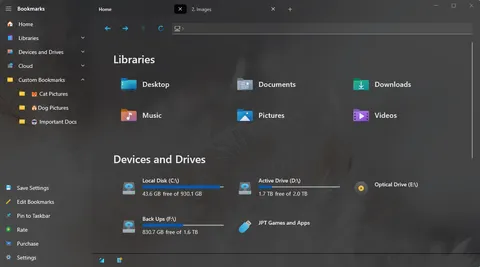
The bookmarks sidebar keeps the places you use most one click away, and you can organize it in folders, just like your files.
Add a bookmark
- Press Ctrl+D to bookmark the folder you are in, or
- drag a folder onto the bookmarks sidebar.
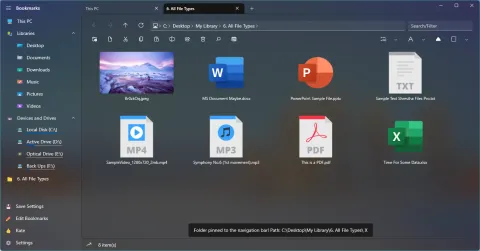
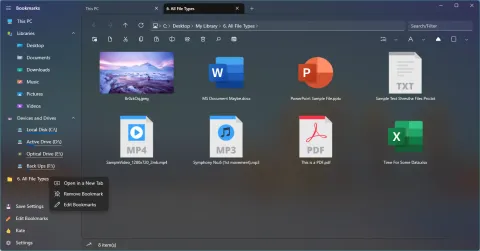
Bookmarking a folder, and the right-click menu on a bookmark. Screenshots from 2022.
A network location such as \\server\share can be bookmarked the same way after you open it from the address bar.
Organize bookmarks in folders
Drag a folder onto a bookmark folder in the sidebar to add it inside that folder as a sub-bookmark. That is how you build a multi-level bookmark tree. Press Ctrl+B to open the bookmark editor, where you can edit your bookmarks and choose their icons.
Icons and names
Each bookmark can have a simple icon or a colorful icon. For an emoji, just type or paste it into the bookmark’s name. To rename a single bookmark quickly, right-click it and choose rename. The right-click menu also opens a bookmark in a new tab or deletes it.
Filled in for you
Libraries, Devices and Drives and Cloud (including OneDrive) are added to the sidebar automatically, and keep their place if you move them. You can also add special places such as the Recycle Bin, and an experimental setting shows the folders pinned in File Explorer.
Other touches
- Resize the sidebar by dragging its right edge.
- A bookmark can remember a view type, so a photo folder always opens in a grid.