
Copying and moving files is easier when you can see where they come from and where they are going. S Files Pro X can show one, two or three folders at once, each in its own pane with its own tabs.
Single, dual or triple pane
- Single pane is a classic file manager window.
- Dual pane puts two folders next to each other, the layout made popular by “commander” style file managers.
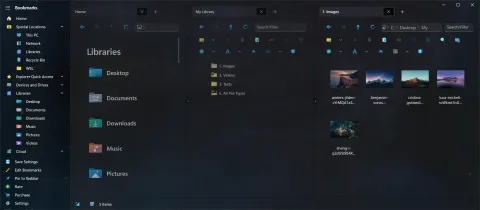
- Triple pane adds a third folder. It makes good use of an ultrawide monitor, for example to sort downloads into two different destinations.
Press Ctrl+H to cycle forward through single, dual and triple pane, and Ctrl+Shift+H to cycle backward.
Left and right, or top and bottom
Panes can sit left and right, or top and bottom. Press Alt+H to switch between the two, or use Settings > General > Pane Orientation. Top and bottom works well on a narrow or portrait screen.
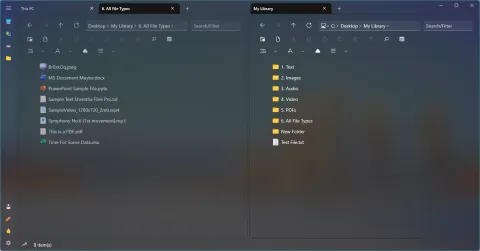
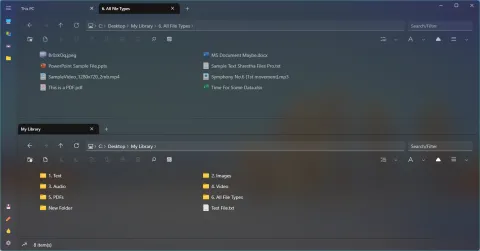
Dual pane, left and right (left) and top and bottom (right). Screenshots from 2022.
Move between panes
- Ctrl+Left and Ctrl+Right move to the previous or next pane.
- Tapping anywhere in a pane, including on a file, makes it the active pane.
- In General settings, you can set a different opacity for the active and inactive panes in light and dark mode, so it is always clear which pane has focus.
Copy and move between panes
Drag files and folders from one pane and drop them:
- inside another pane’s folder,
- onto a folder listed in that pane, or
- onto a tab’s header, which switches to that tab first.
Items dropped on a tab header are moved; hold Ctrl while dropping to copy them instead.
The progress viewer shows each copy or move step by step, including whether each item succeeded.
Each pane has its own tabs
Every pane keeps its own set of tabs, and tabs can be moved from one pane to another. S Files Pro X remembers your pane mode, pane sizes and tabs, and restores them the next time you start the app.
History
Dual pane mode has been part of Shrestha Files since its early versions. Triple pane mode arrived in version 3.3 in June 2023, and the pane shortcuts Ctrl+Left/Right and Alt+H followed in version 3.7.